10 min read
EXPLAINER / Event Production
What Is a Confidence Monitor?
A confidence monitor is a display positioned for a presenter or performer to see information that supports their delivery while facing the audience. Also called a comfort monitor, it may show the current slide, a preview, notes, a timer or another agreed view. The content depends on the prepared feed and system capabilities; requesting a monitor alone does not establish what it will show.
On this page
A presenter-facing screen is useful only when its content, position and operation match the person using it.
In Brief
A confidence monitor gives the person presenting a view they can use without repeatedly turning towards the audience screens. The names confidence monitor and comfort monitor are used for this presenter-facing role; confirm the intended function when briefing a venue or supplier. The term does not specify a screen size, mounting position or software feature. (Warwick; Legrand AV)
Specify what the presenter needs to see, not just that a monitor is required.
The Screen and the View Are Different Requirements
A screen showing the current audience slide may be enough for one speaker. Another may need the next slide and speaking notes. A moderator may need to see a remote panellist. A host may need an agreed remaining-time display.
These are different viewing tasks. They should be described before the technical team chooses how to supply them. A display can be switched on, connected and showing a clear image while still showing the wrong information for its user.
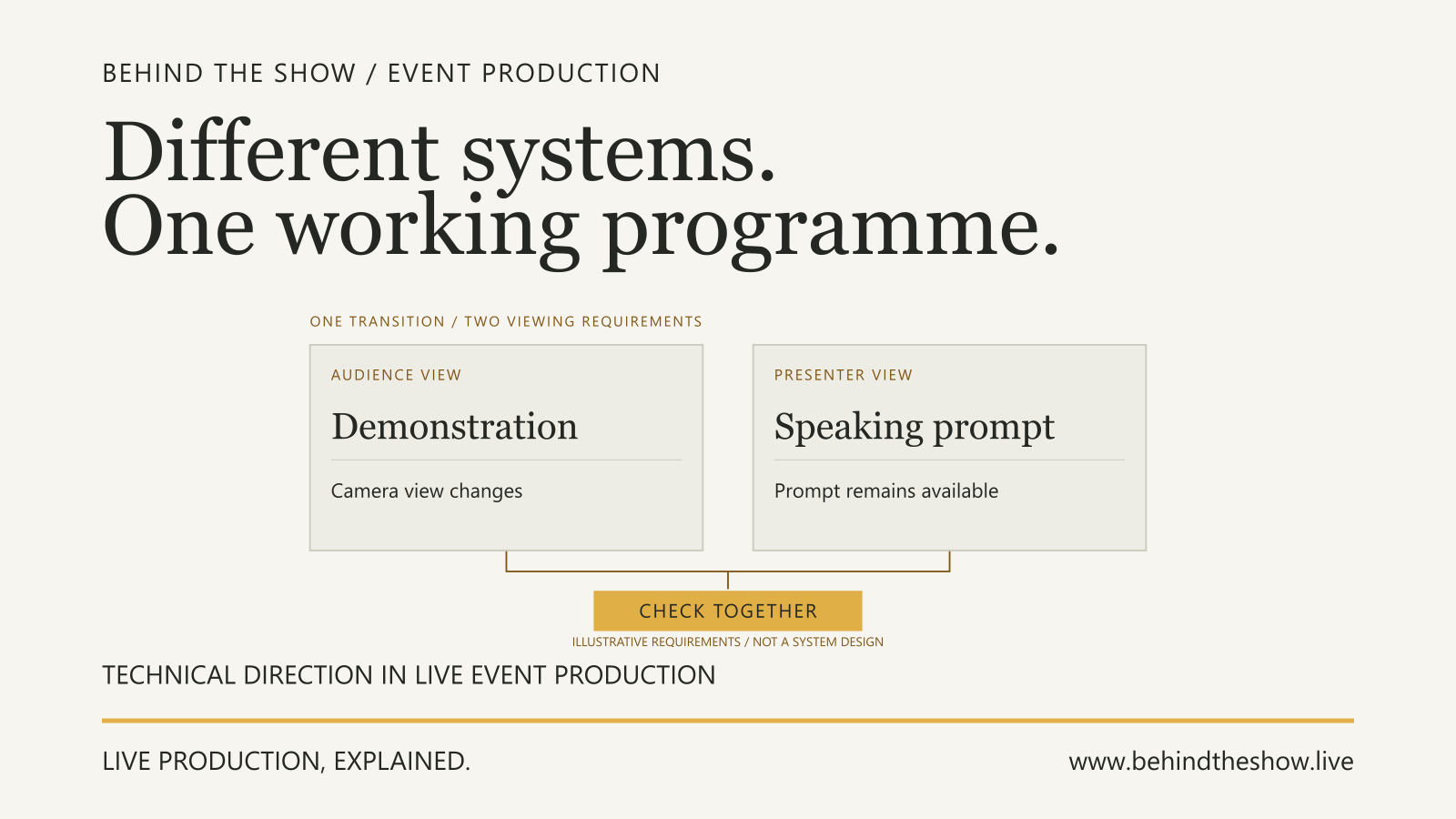
The audience and presenter do not always need the same picture. The audience may need a full-screen slide while the presenter needs a private view containing notes. Copying the audience output will not add information that is absent from that output.
Conversely, do not send a presenter workspace to audience screens or a stream without checking what is visible. Private notes, upcoming material or controls may be inappropriate for those destinations. Confirm the intended output at each receiving destination, not only on the presentation computer.
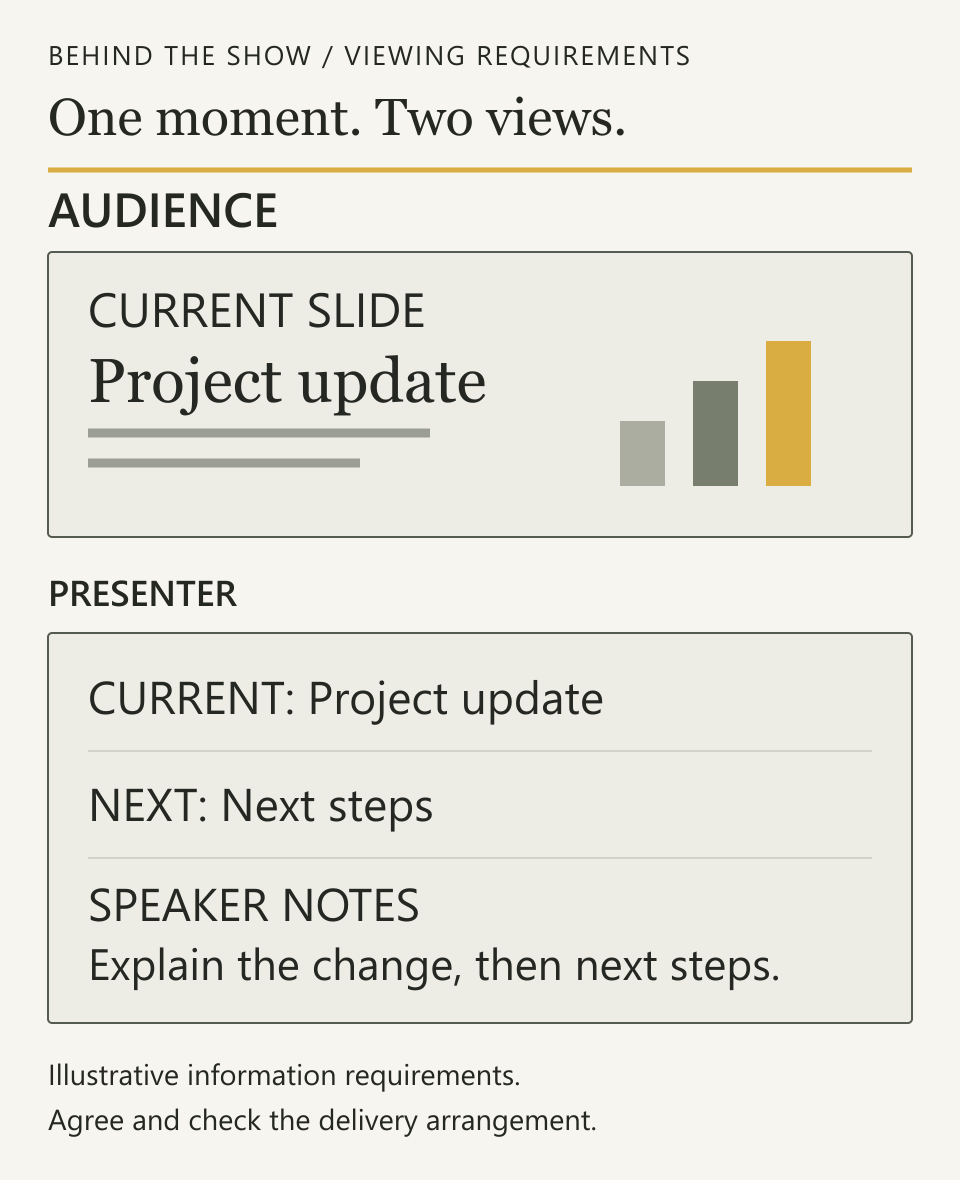
Diagram description: at the same keynote moment, the audience needs the current Project update slide. The presenter needs that slide, a preview of Next steps and speaker notes. These are separately specified viewing requirements, not a prescribed signal path.
What Can a Confidence Monitor Show?
Depending on the agreed arrangement, it may show:
- the current audience slide;
- the current slide with a preview of what comes next;
- speaker notes or selected prompts;
- an agreed clock or timing display;
- a camera view or a remote participant;
- a deliberately prepared combination of information.
These are possible requirements, not features included in every display or venue system. Combining several views may need additional preparation, equipment or operation. The supplier should confirm what the proposed arrangement supports and what is included in its scope.
Microsoft documents a particular software example: PowerPoint Presenter View can show the current slide, the next slide and speaker notes. That capability belongs to the software and its configured output, not to every screen called a confidence monitor. (Microsoft)
When asking for a timer, explain its purpose. An elapsed-time display, remaining session time and a time-of-day clock answer different questions. Agree what starts, pauses or resets it and who controls those actions; do not assume a presentation application's timer follows the event's running order.
Is a Comfort Monitor Different From a Confidence Monitor?
Both names are used for the presenter-facing display role. Do not assume that a comfort monitor shows only slides, or that a confidence monitor automatically includes notes, a next-slide preview or a timer. A venue or supplier may use the labels differently. Confirm the required view and included service instead of treating the names as two fixed equipment categories. (Warwick; Legrand AV)
How Is a Confidence Monitor Different From a Teleprompter?
A confidence monitor can provide reference information while the presenter speaks: for example, the current slide, what comes next or selected notes. A teleprompter serves the task of following a prepared script. In a conference-style glass arrangement, the script is reflected towards the reader; the display and glass are part of the prompting arrangement. (Autocue)
The practical question is whether the speaker needs reminders or intends to read prepared wording at a usable pace. For the latter, agree the current script, how it is presented, who controls its progress and how that person follows the speaker. A list of bullet points and an operated script are different requirements even when both use a screen.
| Term | What it describes | What still needs agreement |
|---|---|---|
| Confidence or comfort monitor | A display serving the presenter-facing viewing task. | Content, position, source, control and changes between programme segments. |
| Presenter View | A software workspace. In PowerPoint, it includes slides and speaker notes. (Microsoft) | Whether that output can reach the intended display and is readable there. |
| Teleprompter | A prompting arrangement for following a script. A conference-style glass prompter reflects text towards the reader. (Autocue) | Script, operation, reading position and the actual prompting arrangement. |
References for the software and glass-prompter examples: Microsoft and Autocue.
A confidence screen can carry script text if that is prepared, but ordering one does not automatically provide a teleprompting service, a script operator or a suitable reading layout. Discuss the speaking task with the production team.
In this Article, monitor means a visual display. Audio stage monitors serve a different listening requirement. Describe the function explicitly if an equipment brief could be misunderstood.
Position It for the Person Who Will Use It
Agree whether the presenter will stand at a lectern, move between positions or sit on a panel. Consider the information they must read from each intended position, including any relevant seated or standing position and individual access requirements.
Try the actual content. Small notes beside two slide previews may be harder to use than the full-screen slide tested earlier. Check readability under the intended lighting and with the relevant stage furniture in place. Also consider whether looking towards the display creates an unwanted eyeline in a camera shot.
There is no single screen size or floor position prescribed here. The viewing distance, content layout, movement and individual user all matter. Have the responsible technical and stage teams review placement, support and cable routes within their scope; an informal screen-position sketch does not establish safe installation or clear access.
Worked Example: A Keynote With Notes and a Film
A fictional conference keynote includes slides, a short film and a return to the presentation. The presenter needs the current slide, next-slide preview and notes during the talk. The audience should receive only the presentation and film. During the film, the presenter wants to retain the prompt for the next speaking point.
The initial brief says only: "One comfort monitor."
What the First Attempt Reveals
| Requirement | Observation in this example | Explained decision | Assigned follow-through in this example |
|---|---|---|---|
| Presenter sees the current slide, next slide and notes. | The display shows only the audience slide. | An image is present, but the agreed information is missing. Confirm a workable presenter output rather than marking the task complete. | Video lead reviews the proposed output with the presentation operator and presenter. |
| Notes are readable at both intended speaking positions. | The proposed presenter layout is readable at the lectern but not from the second speaking position. | Check the actual layout and position together. Do not choose a larger screen by assumption or inherit the lectern result. | Presenter reports the difficulty; video and stage leads review a suitable arrangement. |
| Presenter retains the next speaking prompt during the film. | The presenter display follows the film, so the prompt disappears. | Define the required view for the film segment and the return to slides. It need not follow the audience output. | Video lead proposes the destination behaviour; operator confirms the required actions. |
| Audience receives presentation content without the private workspace. | Notes have been checked only on the source computer, not at the audience destination. | Leave that receiving check open. Source inspection alone does not confirm the audience output. | Video operator checks the actual audience destination and reports the result. |
Agree the Arrangement, Then Try the Sequence Again
The video lead proposes a presenter feed and layout that can support the agreed notes and slide information while the audience receives the intended public content. The stage lead reviews the proposed display position. If the arrangement changes equipment, operating work or quoted supply, the person authorised for that scope must accept the change; the presenter's preference alone does not commit the supplier.
Technical Direction explains the integration function and its boundary with specialist checks and approval.
For this fictional example, the teams agree that the presenter advances slides, the playback operator starts the separate film on the agreed cue, and the video operator manages the destination changes. These assignments describe this example, not a universal staffing model.
The second attempt covers the slide sequence, film start, presenter prompt during the film and return to the correct slide. The presenter confirms that the agreed information is usable from both intended positions. The video team checks that the audience destination shows the intended public content throughout the attempted sequence. The relevant results and remaining limits are recorded for programme handover.
That outcome supports the checked keynote arrangement. It does not verify an untested streaming output, every later presenter or a subsequently replaced presentation file.
If the Presentation Changes Later
A replacement deck arrives with revised slides but no speaker notes. Receiving it does not preserve the arrangement checked with the earlier file. Ask the content owner and presenter whether notes are still required, identify the current file and repeat affected checks. If the remaining time does not allow the intended arrangement to be confirmed, record the limitation and refer any programme decision to the agreed authority.
ILLUSTRATIVE SCENARIO
What to Put in the Production Brief
Describe the user, their speaking positions and what they need to see during each relevant segment. Identify the current presentation and notes, any timing information, the person supplying each item and who operates changes. State which audience, recording, streaming or remote-participant destinations must remain separate. The Recording and Live Streaming Requirements guide explains those separate briefs.
A useful request is: "The keynote presenter needs current and next slides plus notes from the lectern and second speaking position. During the film, retain the agreed return prompt. Confirm the proposed presenter view, scope and rehearsal checks."
That tells the supplier more than a screen quantity alone. It still allows the technical team to assess the solution instead of asking the client to design it.
What Should Be Checked in Rehearsal?
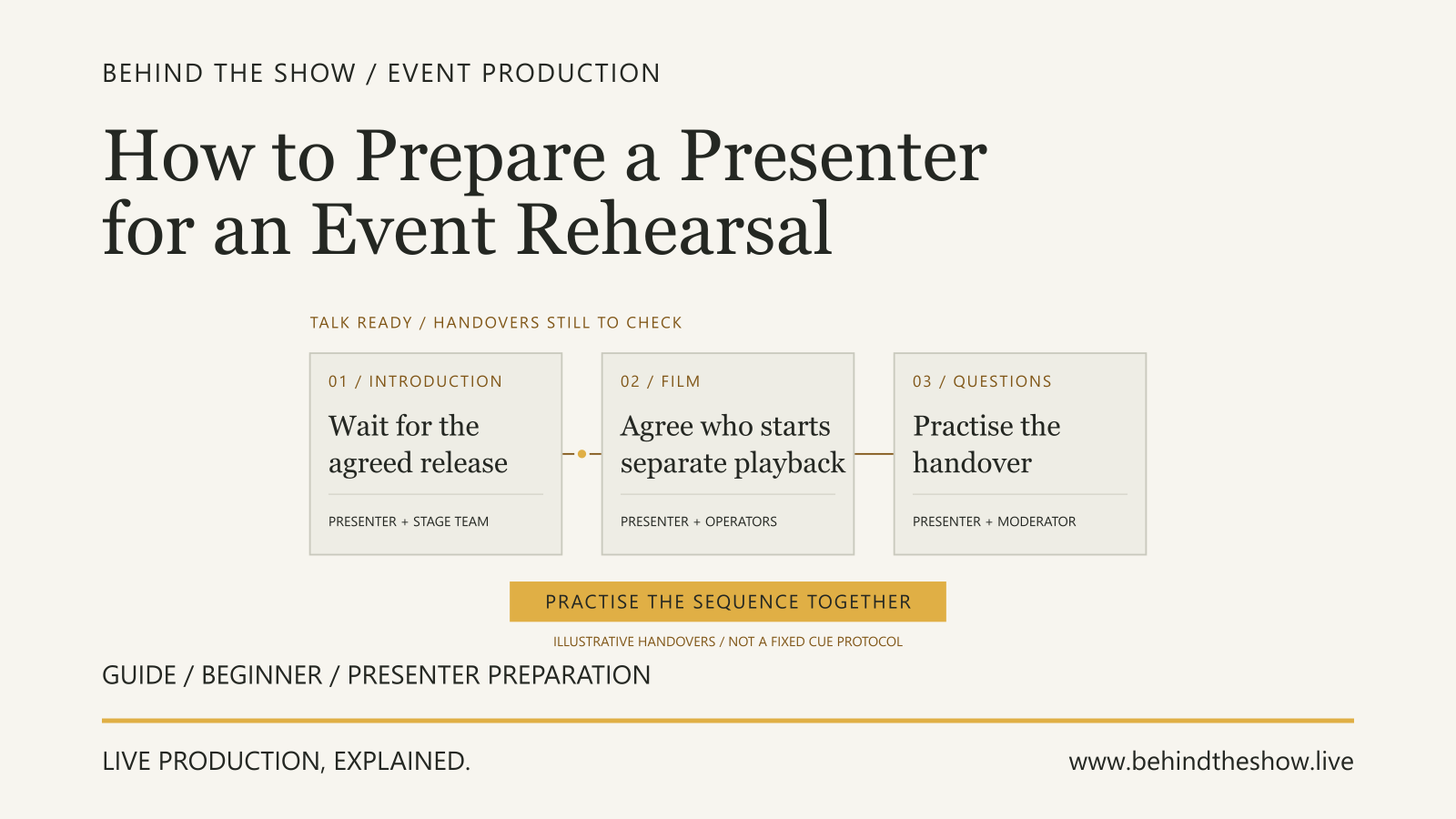
Use the current content with the actual presenter where practicable. For the wider preparation, see preparing a presenter for an event rehearsal. Check the view from the intended positions, the readable information, slide control, film transitions and the return to the presentation. Confirm what the audience and any separately commissioned destinations actually receive.
Agree how the presenter reports a missing or wrong view, who investigates it and who can decide a programme response. A spare display is useful only if the proposed response addresses the actual failure and can be put into use as agreed.
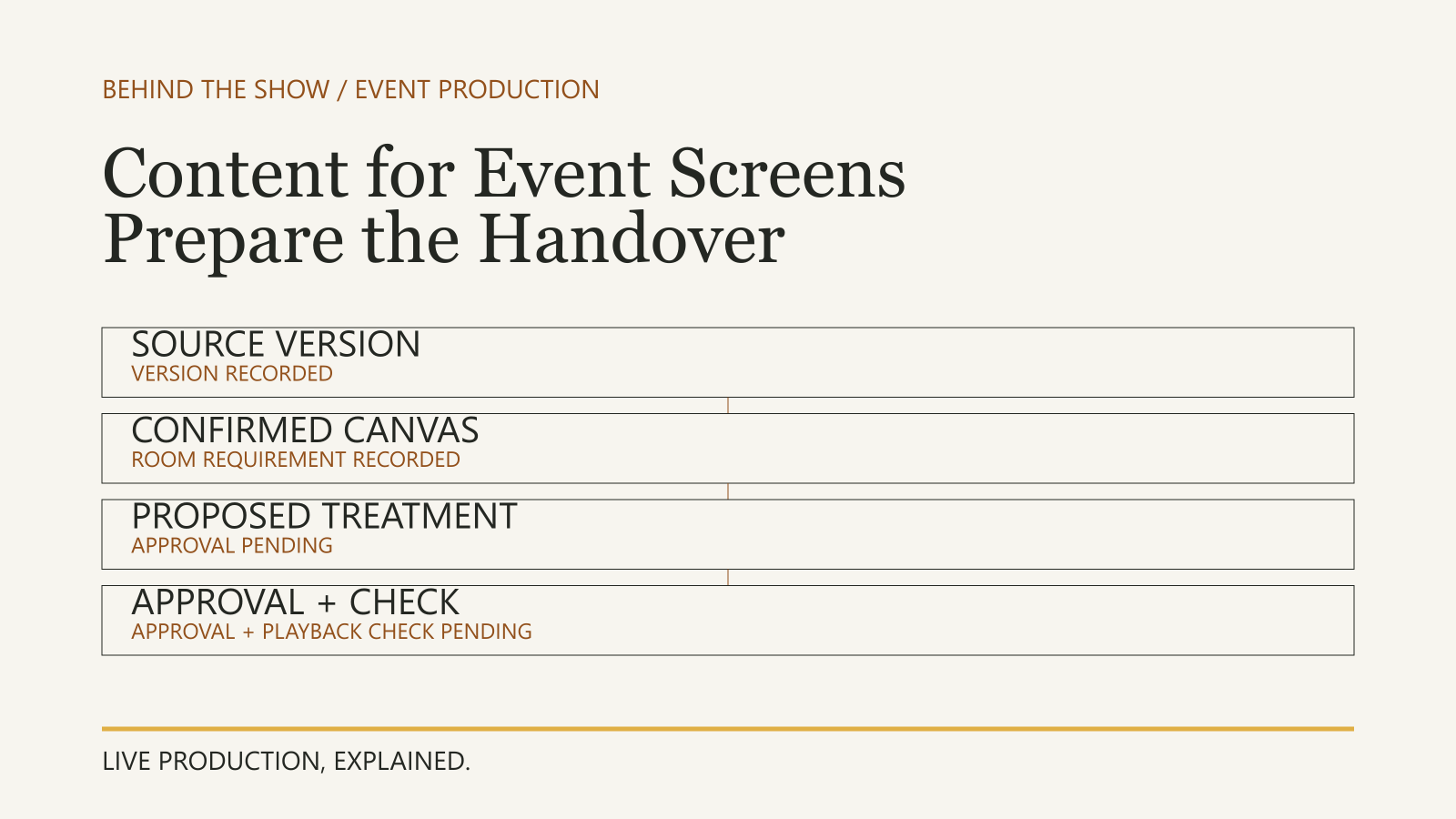
Record what was checked, who confirmed it and what remains unresolved. Keep content revisions and affected receiving checks visible through handover.
Related questions
What is a confidence monitor?
A confidence monitor is a presenter-facing display carrying information agreed to support delivery, such as slides, notes, timing or another programme view. Its content depends on the prepared feed and system capabilities.
Is a comfort monitor the same as a confidence monitor?
The names are used for the same presenter-facing display role, but usage varies. Confirm what the user needs to see and how it will be supplied rather than relying on either equipment label.
What can a confidence monitor show?
Depending on the agreed system, it may show slides, a preview, notes, timing, a camera view or another prepared combination. Confirm the actual content and operation; these are not features included in every monitor.
Does a confidence monitor automatically show speaker notes?
No. Notes must be present in the current content and included in a suitable presenter feed. Copying an audience slide output does not add notes, and private presenter information should be checked against each intended destination.
Is a confidence monitor a teleprompter?
A confidence monitor describes a presenter-facing display. Teleprompting involves presenting a script through an agreed prompting arrangement. A screen may carry script text, but supplying it does not automatically include prompting software, script preparation or an operator.
Is a confidence monitor the same as an audio stage monitor?
No. Here, a confidence monitor is a visual display for the presenter. Audio stage monitoring provides sound for performers. State the intended function explicitly when briefing the requirement.
What size should a confidence monitor be?
Choose it against the actual content, viewing distance, presenter positions and individual reading needs. Try the proposed arrangement; no single size or floor position is suitable for every event.
What should a presenter check on a confidence display?
Confirm the content they need to see, such as slides, notes or a prompt, and try it from the agreed position during relevant transitions. Technical teams determine and check the arrangement; requesting a display does not establish its capabilities or included supply.
Sources & references
- Teaching Room TechnologiesUniversity of Warwick IDG / primary document
- Integration Guide to Active Learning SpacesLegrand AV / manufacturer
- Use Presenter View in PowerPointMicrosoft / manufacturer
- How a prompter worksAutocue / manufacturer
Continue learning